 Lyztin
How this works
Lyztin can be connected to Claude as a connector. Once it is, Claude can see your lists, search them, create new ones and add entries to them — using your own field names, so “put the price in the Value field” means exactly that.
Claude can also look at photographs. Put the two together: you send Claude a picture of your living room and say “add everything you can see to the Living Room list”, and Claude reads the picture, works out what is in it, and writes the entries into Lyztin. You watch them appear.
Where the photos go. The pictures go to Claude, in your Claude conversation, and Claude reads them there. Lyztin never receives them and cannot, so the entries Claude writes have names, not photos. If you want a picture on each item — a good idea for anything valuable — add a Photo field and snap one from inside the app afterwards. This also means the fill costs nothing from your Lyztin AI allowance; it is Claude doing the reading.
Step 1: Connect Claude to Lyztin
- Open Connected apps in Lyztin. From the account menu on your home screen, choose Connected apps. It shows the address Claude needs, with a copy button.
- Add the connector in Claude. In Claude, open Customize → Connectors, press + → Add custom connector, paste the address, and press Add. You can ignore the advanced settings — Lyztin and Claude sort those out between them.
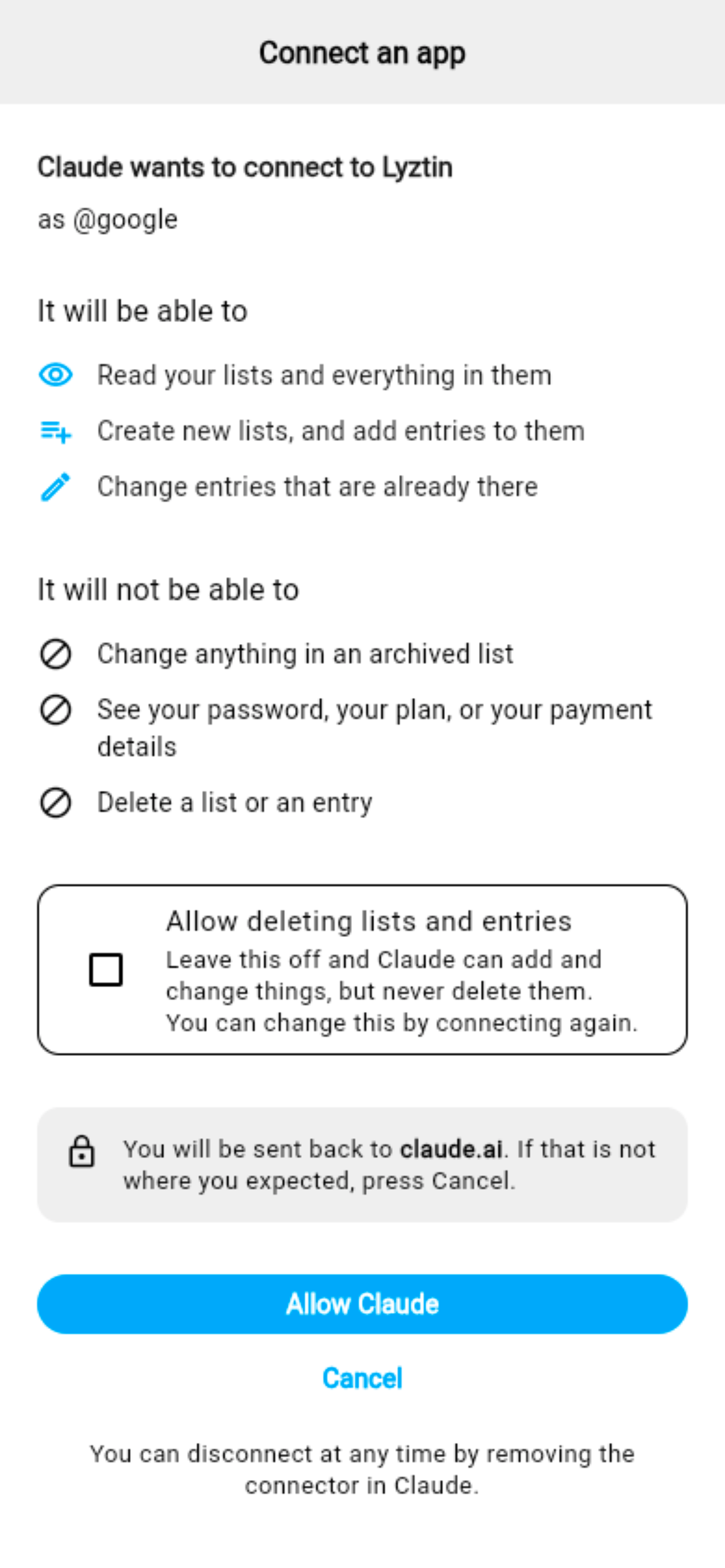
- Press Connect, and approve it. Claude sends you to Lyztin, which shows you what the connection will be able to do. There is a checkbox for Allow deleting lists and entries; leave it off for this — Claude will only be creating. Press Allow.
That is it. Claude now lists Lyztin among its connectors, and you can disconnect it at any time from the same Connected apps screen. Disconnecting leaves everything Claude wrote exactly where it is.
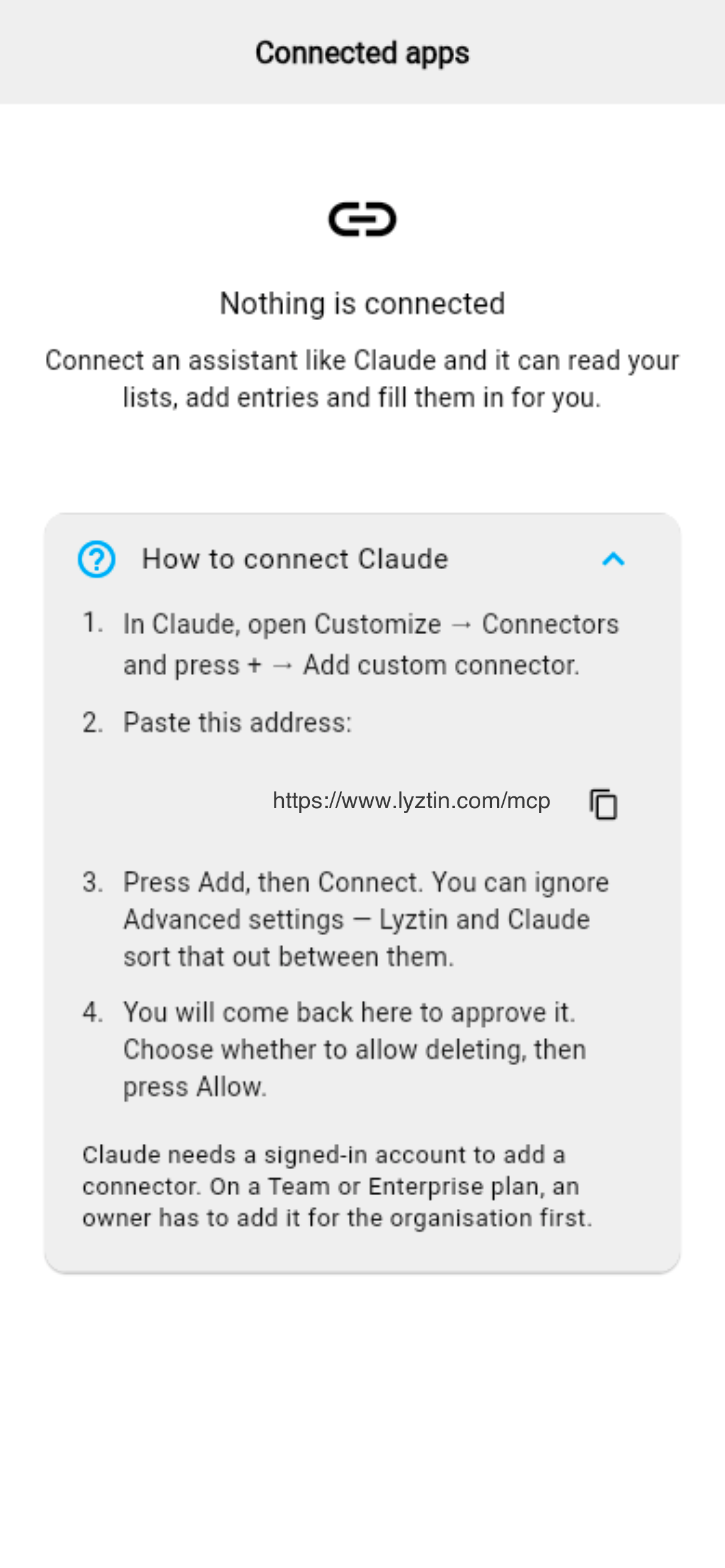
Claude needs a signed-in account to add a connector. On a Team or Enterprise plan an owner has to add it for the organisation first.
Step 2: Ask for the list
Start a conversation and describe the shape you want. This one works well, because it gives every room its own list:
Claude makes the list with exactly those fields. If you would rather have one flat list with a Room Select on every item — better if you want a value and a serial number on each item — say that instead; Claude can make either shape.
Step 3: Walk the house
Stand in the doorway of a room, take a photo — two if it is big — and send them to Claude:
Repeat per room. Claude adds an entry for the room, nests a Contents list inside it, and fills that list with what it saw. If it misreads something, say so — “that's a piano stool, not a side table” — and it will fix the entry.
Step 4: Make it worth something
A list of names is a good start; an insurer wants more. Three things to do next, in the app or through Claude:
- Add fields to the Contents lists. Each room's list is an ordinary Lyztin list. Open it, choose Edit list, and add a Value (Decimal, with a $ unit), a Serial number (Text) and a Photo (Image). You can do that for the rooms that matter — the office, the garage — and leave the hallway alone.
- Let Claude estimate. “Fill in a replacement value for everything in the Living Room contents” gets you a starting point you can correct, and Claude will tell you which ones it is unsure about.
- Photograph the valuable things. Open the item, tap its Photo field, and take the picture. A photo of the serial-number sticker is the one an adjuster asks for.
Switch on AI autofill for the receipts. If you add a Receipt file field to a Contents list and switch AI on for it, dropping a PDF receipt on an item fills in its value and purchase date from the document. That one is Lyztin's own AI, and it draws on your account's AI allowance.
Keeping it current
The list is now something you can talk to. “I sold the record player” — Claude finds it and, if you allowed deleting when you connected, removes it (it will confirm first). “Add the new dishwasher to the kitchen, Bosch, $1,100, bought today” — done. “What's in the garage worth more than $500?” — a list, in a sentence.
And if you ever need it, a shared link turns the whole inventory into a read-only page you can hand to an adjuster without giving anybody your account.