 Lyztin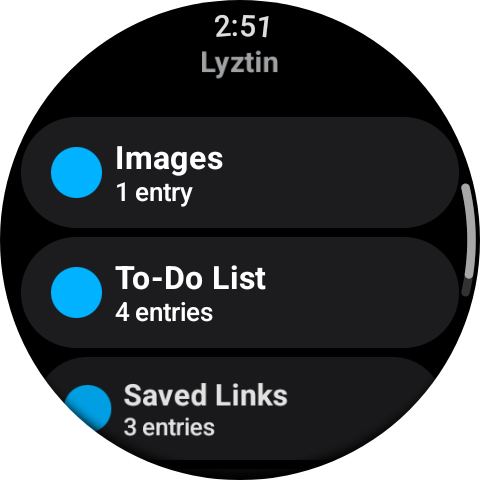
What the watch shows
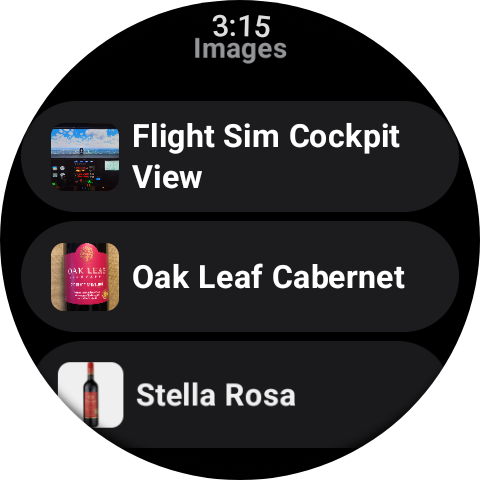
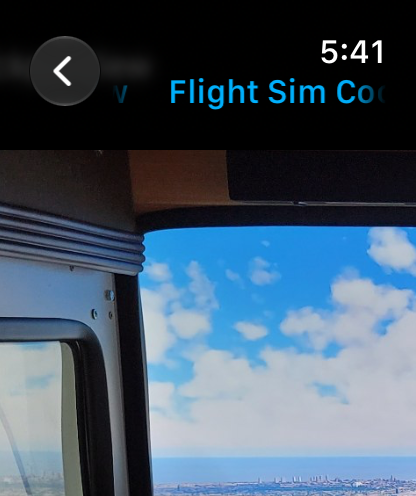
Everything, read-only. Your lists in the order you arranged them on the phone, each with its colour and how many entries it holds. Tap one and the entries scroll past as tiles — the title, one line of detail, the cover picture. Tap an entry and every filled-in field is there under its label: a Decimal with its unit, a Rating as stars, a Date, a Select. Pictures open full-screen and swipe through. A nested list is a chip that opens it.
| Screen | What is on it |
|---|---|
| Lists | Every top-level list, in your own drag order, with its colour and entry count. |
| Entries | One list’s entries as tiles: title, a line of detail, the cover picture. Loads more as you scroll. |
| Entry | Every filled-in field, a label over its value; pictures; a chip into a nested list; a button for each Webhook field. |
| Pictures | An Image or gallery field full-screen, swiped through. |
| Settings | Whose watch this is, and Disconnect. |
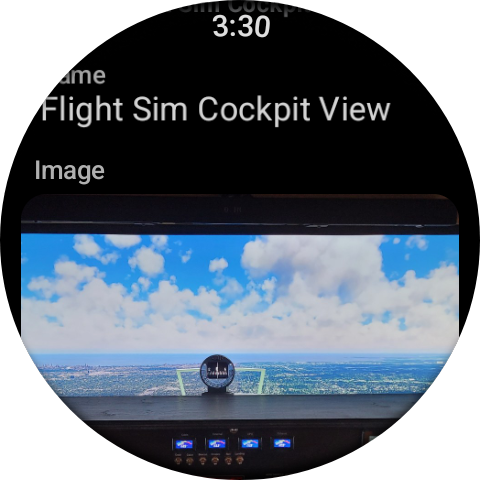
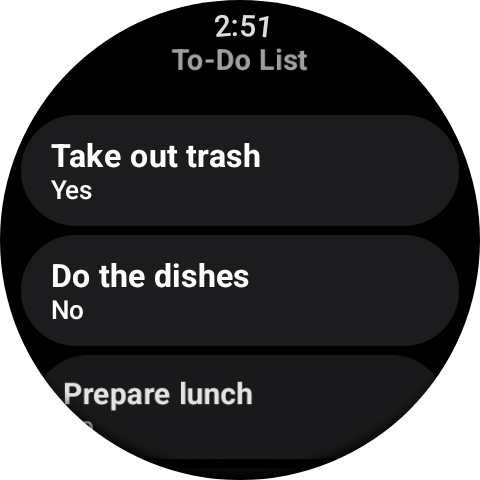
It is a reader. The watch never adds, changes or deletes anything — a wrist is the wrong place to type a serial number, and the wrong place to accidentally delete a list. The one thing it can do is press a Webhook button: a button you put on a list’s entries that calls a URL you chose, with the entry’s own values filled in. That is worth more than it sounds — see below.
Connecting it
A watch cannot sign in by itself — there is no Google or Apple sign-in on a wrist — so the phone signs it in, once.
- Install Lyztin on the watch, from the watch’s own app store, and open it once so the phone can find it.
- On the phone, open the account menu and choose Watch. Keep the watch nearby and unlocked.
- Press Connect this watch. The phone finds it by name, signs it in as you, and says Sent to your watch. Your lists should appear on it in a moment. They do.
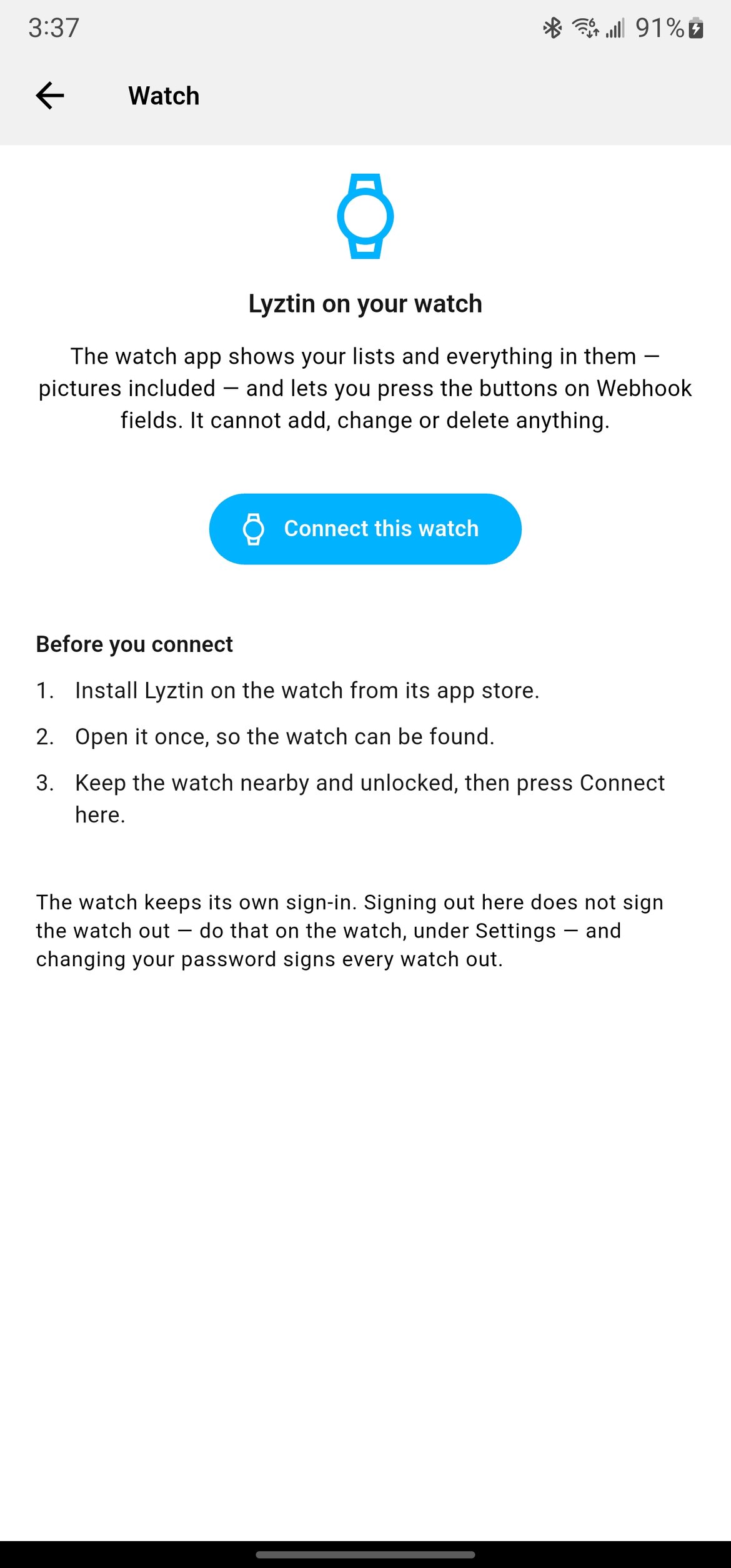
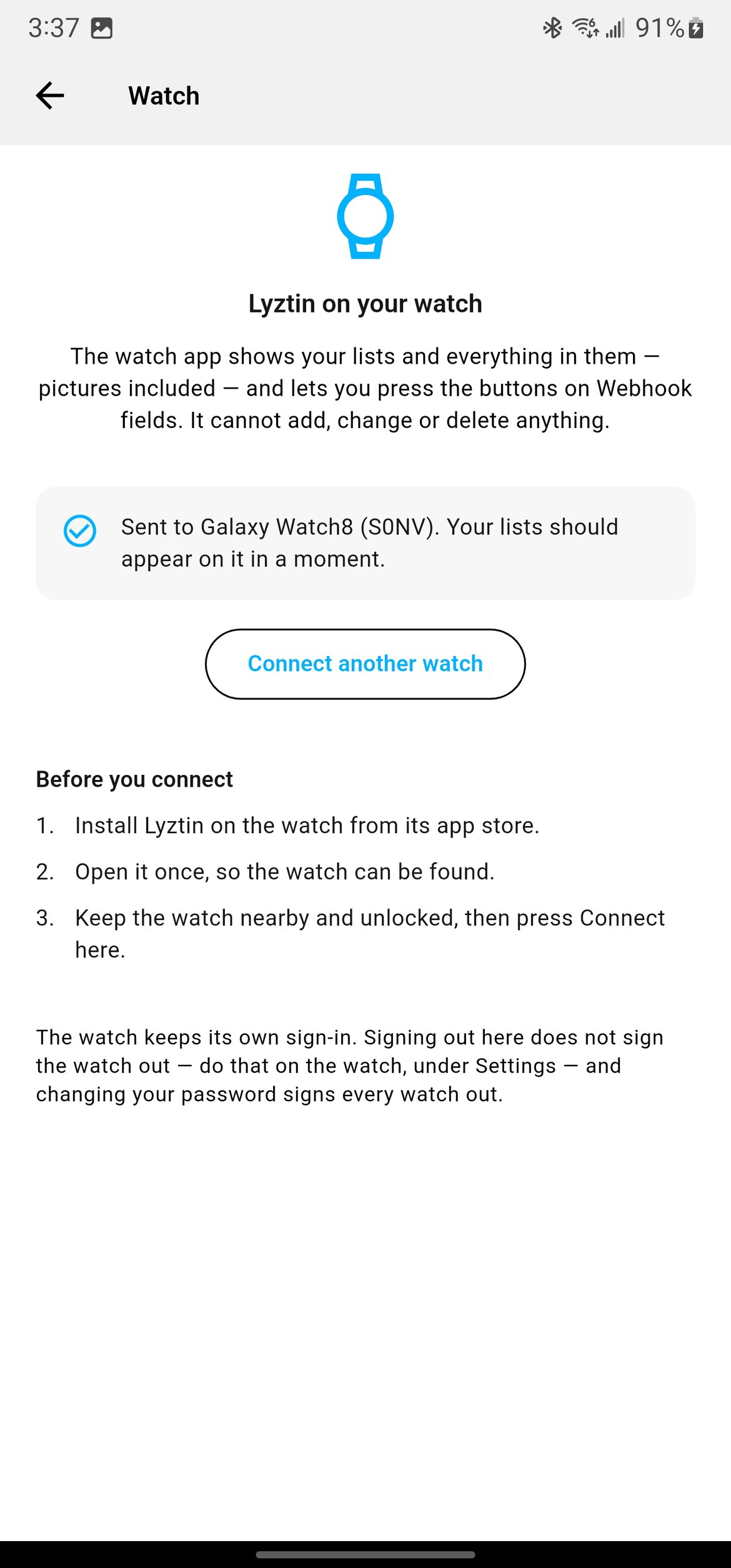
On an Apple Watch, have Lyztin open on the watch’s screen when you press Connect. An iPhone can only hand something to a watch app that is in front; otherwise the sign-in is queued for the next time the watch app opens, and the phone tells you so — open Lyztin on the watch within the next few minutes and it completes. A Wear OS watch is found by name and needs only to be nearby.
From then on the watch keeps its own sign-in. It refreshes itself, it works with the phone in another room or switched off, and signing out of the phone does not sign the watch out — do that on the watch, under Settings. Changing your password signs every watch out, which is what you would want.
The button on your wrist
A Webhook field puts a button on every entry of a list, and pressing it sends that entry’s values to a URL you configured. On the phone that is handy; on the watch it is the point. A few lists that earn a Webhook field:
- Rooms, with a “Lights” button per room that calls your smart-home hub. Walk in, raise your wrist, press.
- Chores, with a “Done” button that appends a row to a spreadsheet through an automation service — no phone, no typing.
- Plants, with a “Watered” button that logs today’s date somewhere you can chart it.
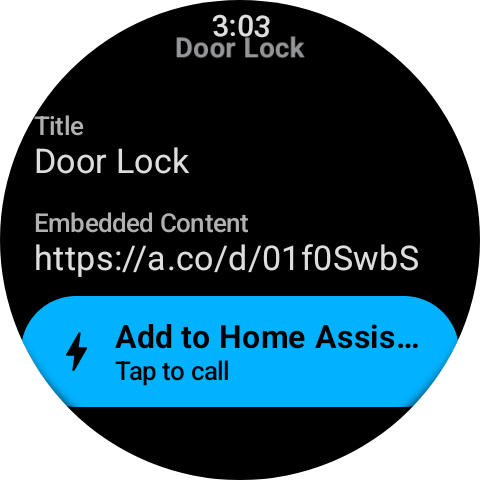
- Doors, one entry per lock, one button each — the example in the picture calls a Home Assistant automation.
The watch shows the last call under each button, so you can see it went.
Where it fits
The bins article ends with a search that says which tote the thing is in. On the watch, the reverse is just as good: standing at the shelf with a bin in your hands, the bin’s contents are a glance away — no phone, no scan. Same for a pantry list in the supermarket, a parts list at the workbench, a wine list at the rack.
Things to know
- Pictures need a connection. The watch loads them from the cloud as you open an entry and keeps only a cache of recent ones, plus what it needs to stay signed in.
- A new field type shows up on the watch as text, straight away, without a watch update. Lyztin’s servers do the rendering and the watch draws what it is sent.
- Archived lists are not shown, and neither are lists nested inside entries — those open from the entry they belong to.
- The Apple Watch app needs watchOS 9, which means a Series 4 or later. Wear OS needs version 3 or later.
- To disconnect, open Settings on the watch. Reconnecting is the same button on the phone.