 Lyztin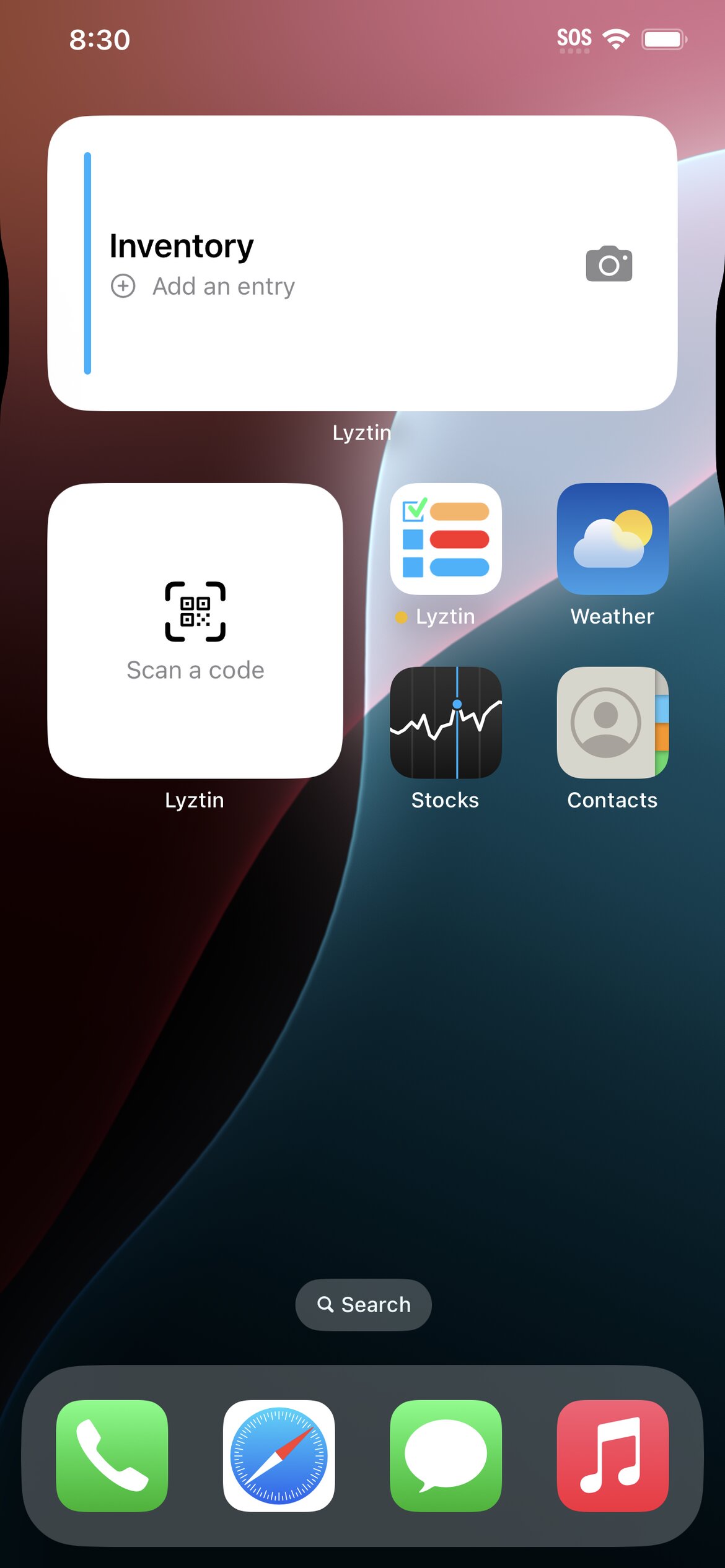
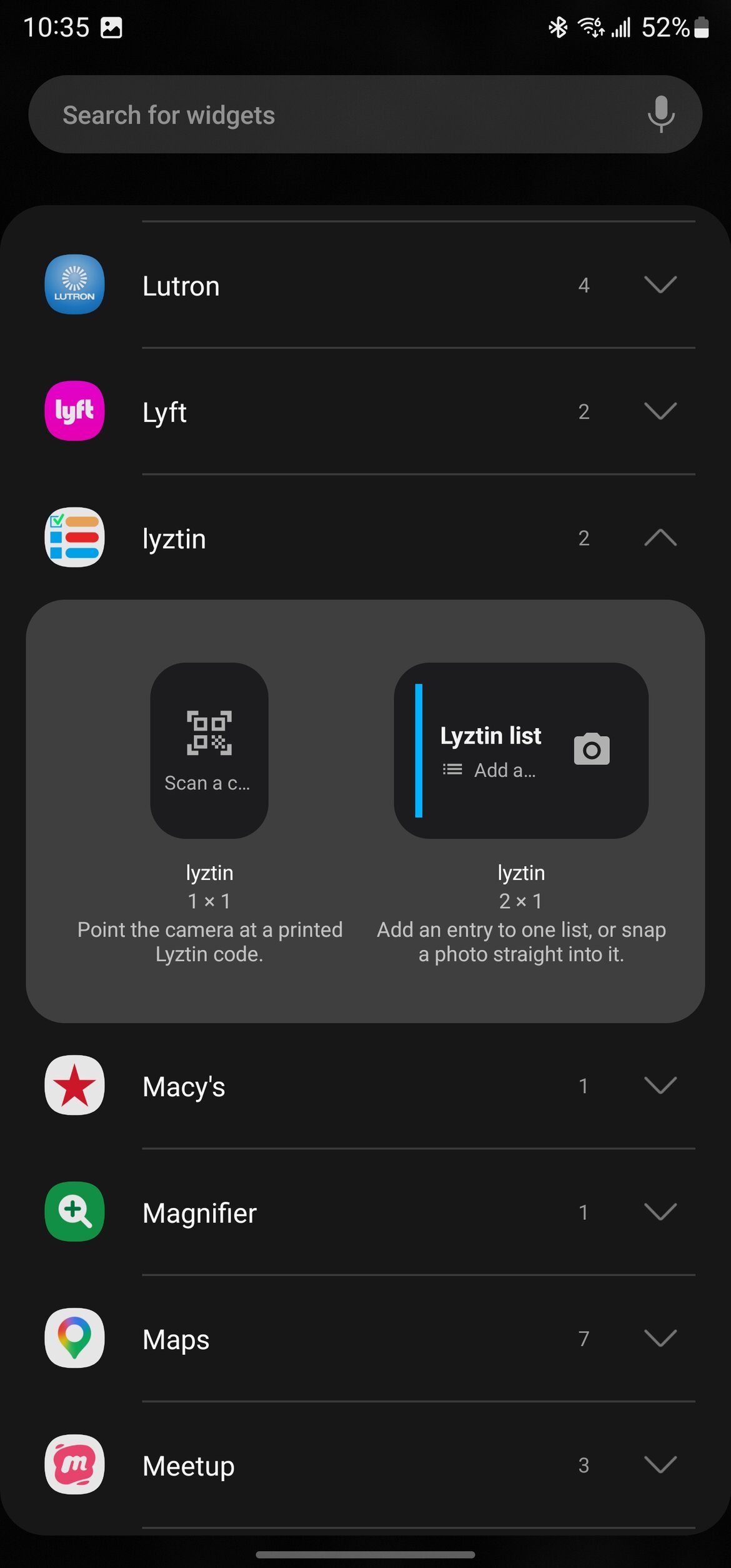
The two widgets
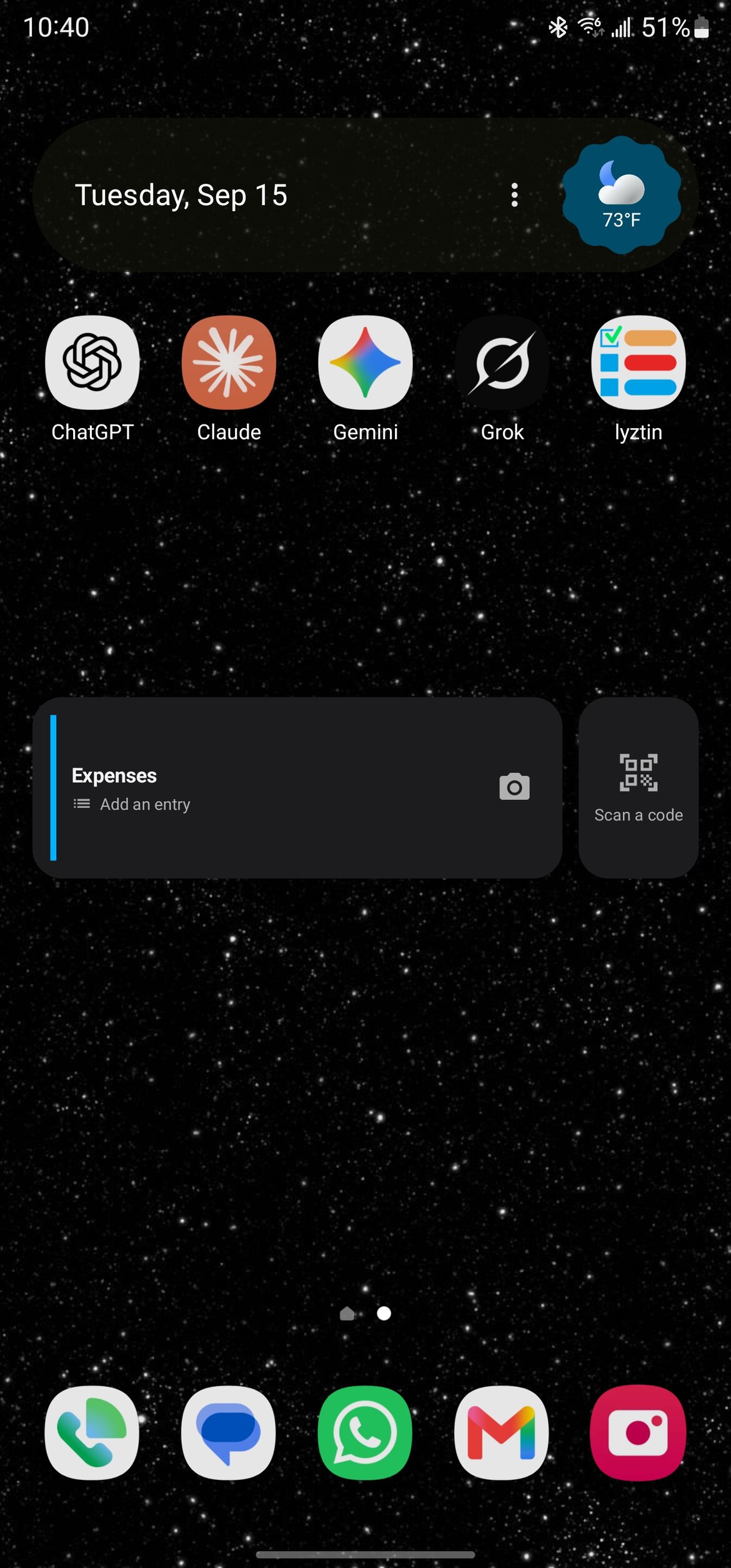
| Widget | What a tap does | Sizes |
|---|---|---|
| Lyztin list | Tapping the body opens a new entry in the list you pinned. Tapping the camera button opens a new entry with the camera already open, pointed at the list's photo field. | Small and medium |
| Lyztin scan | Opens the QR scanner, for a printed Lyztin label. | Small |
They are buttons, deliberately. A widget that showed your entries would be a snapshot — out of date the moment you changed something on another device, and readable by anyone glancing at your lock screen. A button cannot be stale, and cannot leak. The widget shows the list's name and colour, and the two things you can do.
On an iPhone
- Touch and hold an empty spot on the home screen until the apps start to jiggle, then tap Edit → Add Widget in the top corner (on older versions of iOS, the + button).
- Search for Lyztin. Both widgets are listed. Swipe between the sizes of Lyztin list, and tap Add Widget.
- Pick the list. While the home screen is still in edit mode, tap the new widget — or later, touch and hold it and choose Edit Widget. Tap List and choose one of yours.
- Tap Done. The widget takes the list's colour and name.
Add Lyztin scan the same way; it has nothing to configure.
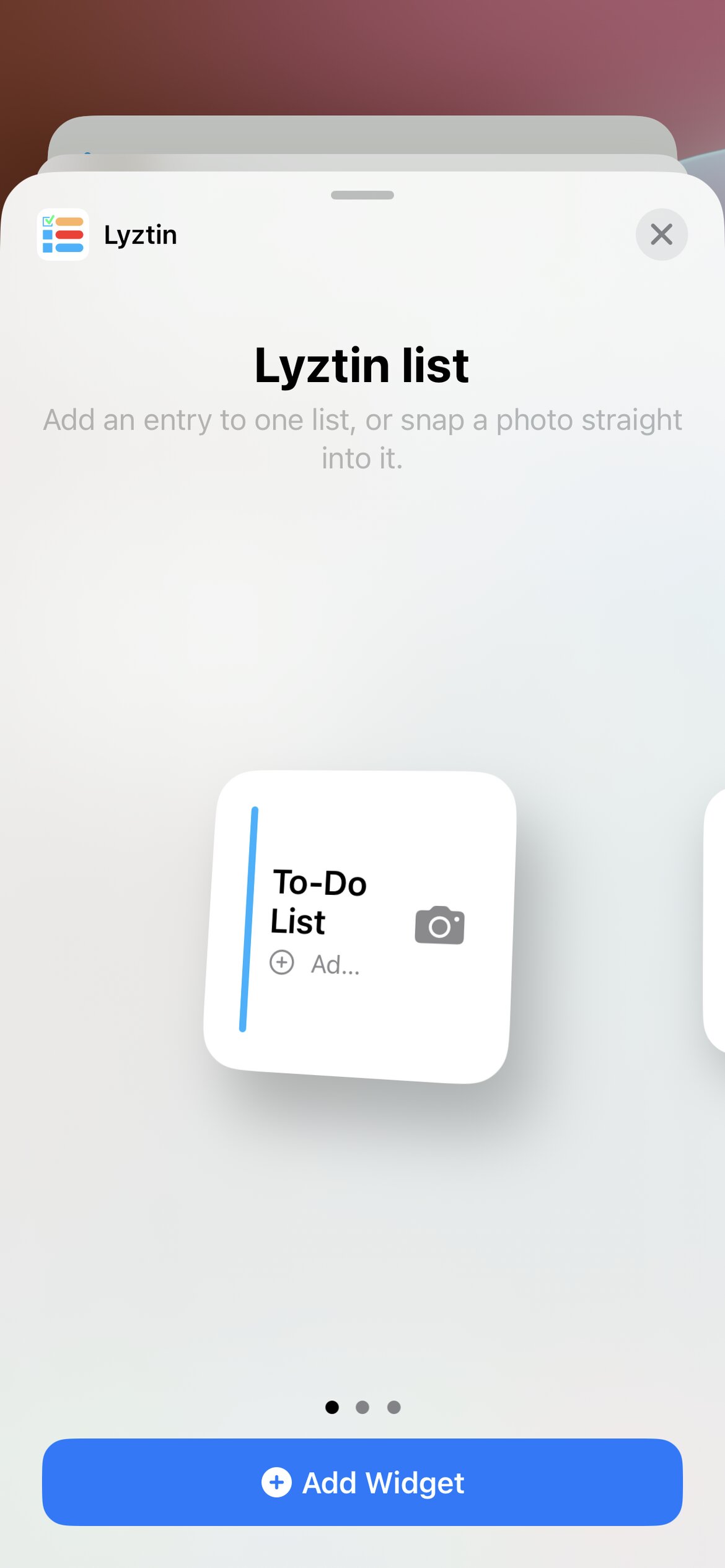
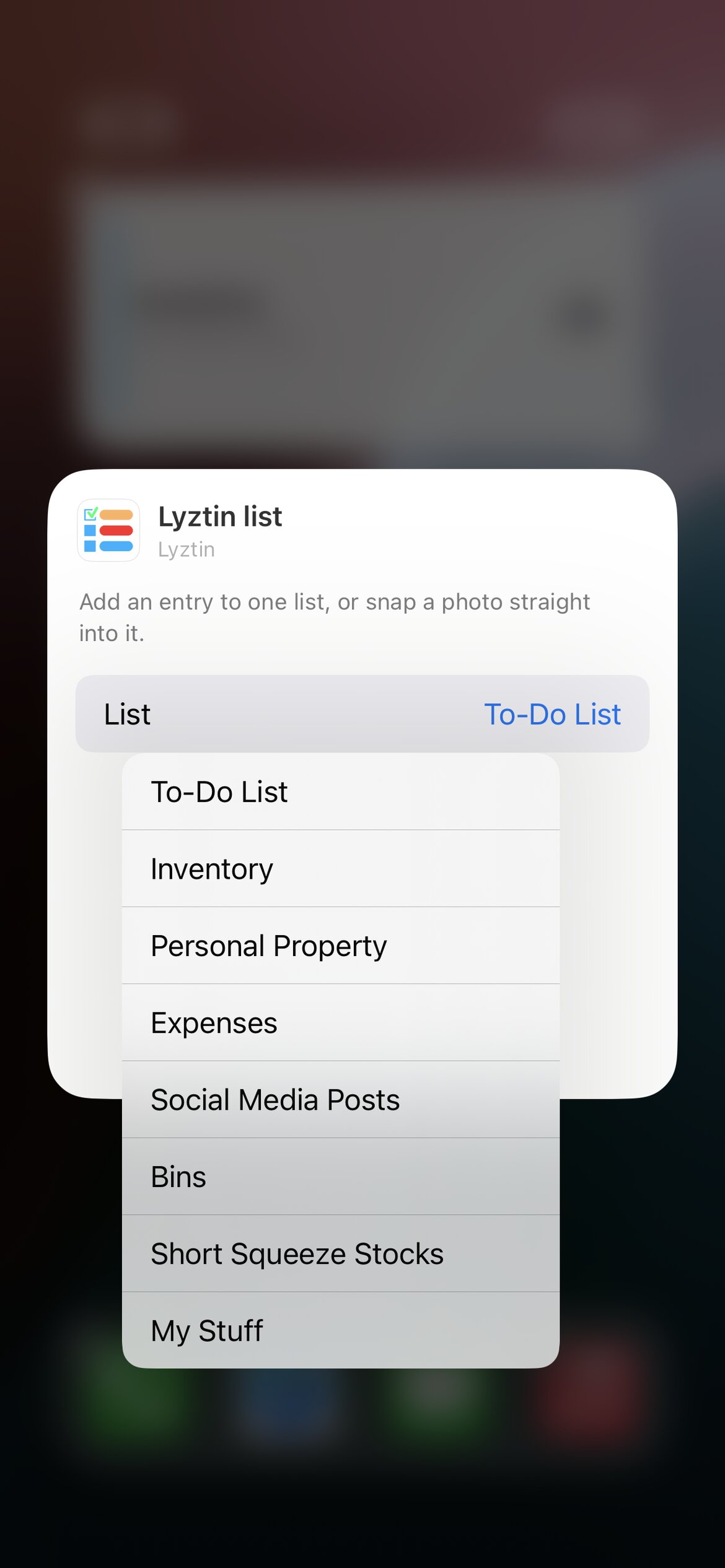
The widgets need iOS 17 or later. On an older iPhone they simply do not appear in the gallery.
On Android
- Touch and hold an empty spot on the home screen and choose Widgets.
- Find Lyztin in the list of apps. Touch and hold Lyztin list and drag it onto the home screen.
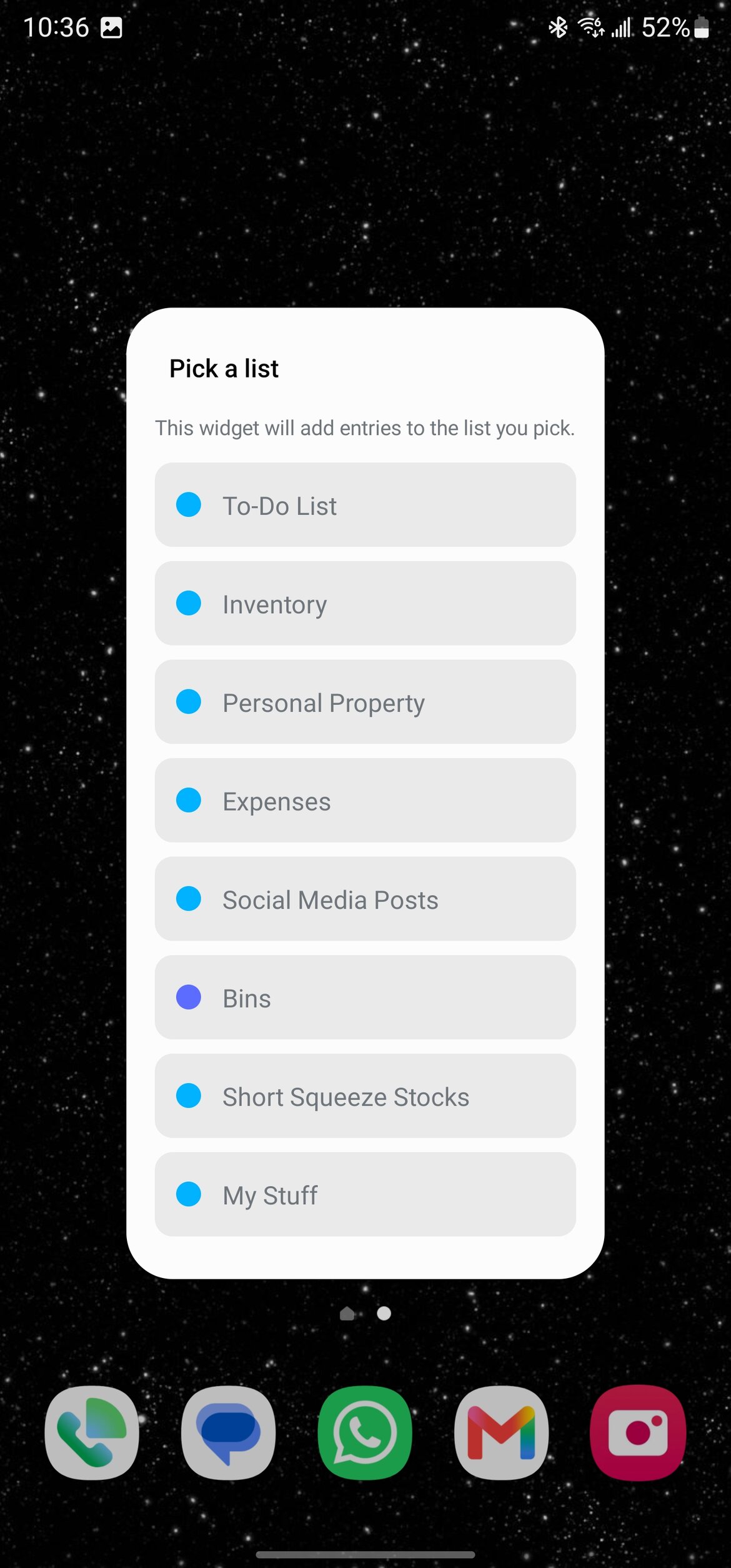
- Pick the list. A picker opens as soon as you drop the widget. Choose one; the widget takes its colour and name.
Lyztin scan goes on the same way, with no picker.
Things to know
- The camera button needs a photo field. It opens the camera into the list's first Image or Image gallery field. If the list has neither, the entry still opens and Lyztin says why the camera did not.
- Signed out? The widget says Not signed in, and a tap opens Lyztin so you can. Once you are, it goes back to being a button.
- The picker shows the lists you have as of the last time the app was open on your home screen. Made a new list and it is not offered yet? Open Lyztin, let the home screen load, and try again.
- Rename the list and the widget follows, next time the app has been opened. The widget is pinned to the list, not to its name.
- Deleted the list? The widget says List not found. Edit it and choose another.
What to pin
The best candidate is the list you add to when your hands are full: the shopping list while you are looking in the fridge, the wine list while the bottle is on the table, the expenses list while the receipt is still in your hand. The camera button and an AI-enabled photo field together mean a tap, a photo, and a filled-in entry — without ever finding the list.